Review the Android release details
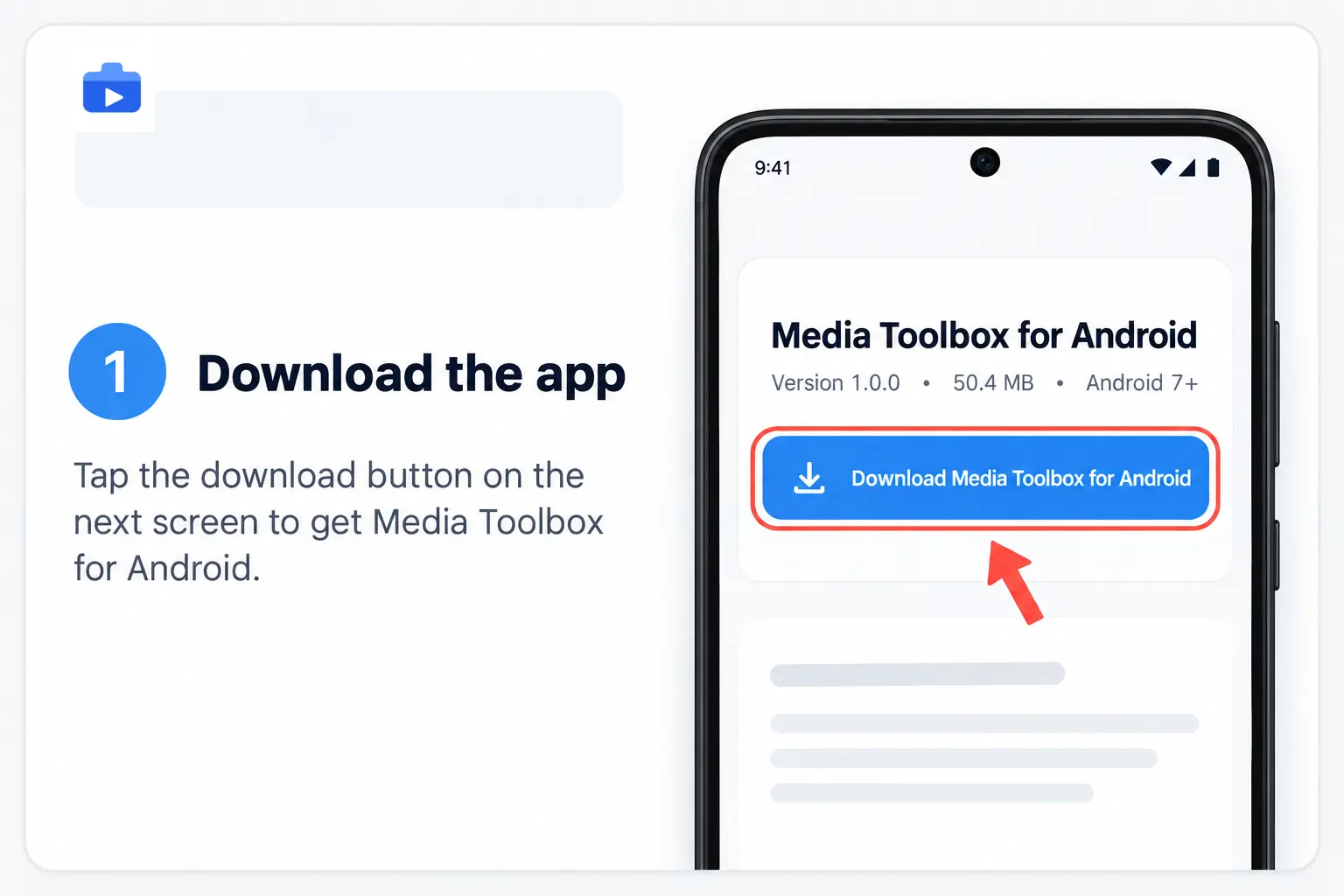
Use the download button above and wait for the file to finish completely.
Public release / ANDROID
Get the public Not released release, review the published details, and follow the installation guide below.

Public release
Before you start
Confirm the platform, version and source before opening the downloaded file. Review the release details above before continuing.
Good to know
Keep the app and its media workflows on the device you intended. Do not install files from an unexpected source.
Follow each platform prompt carefully before opening the app.
Use the download button above and wait for the file to finish completely.
Compare the version, file size and source with the release information published on this page.
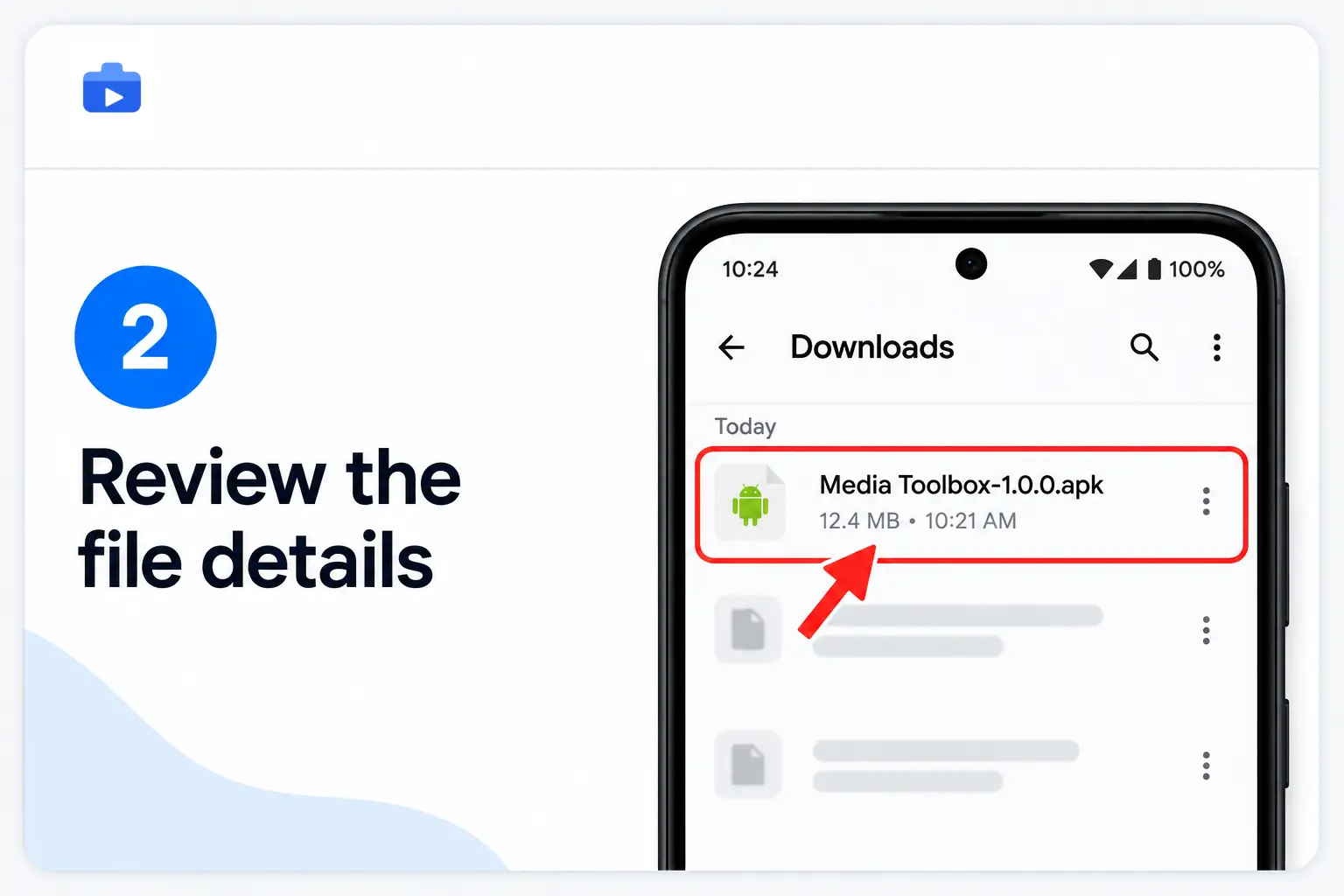
Follow the operating system prompt carefully and continue only when the file matches the release you selected.
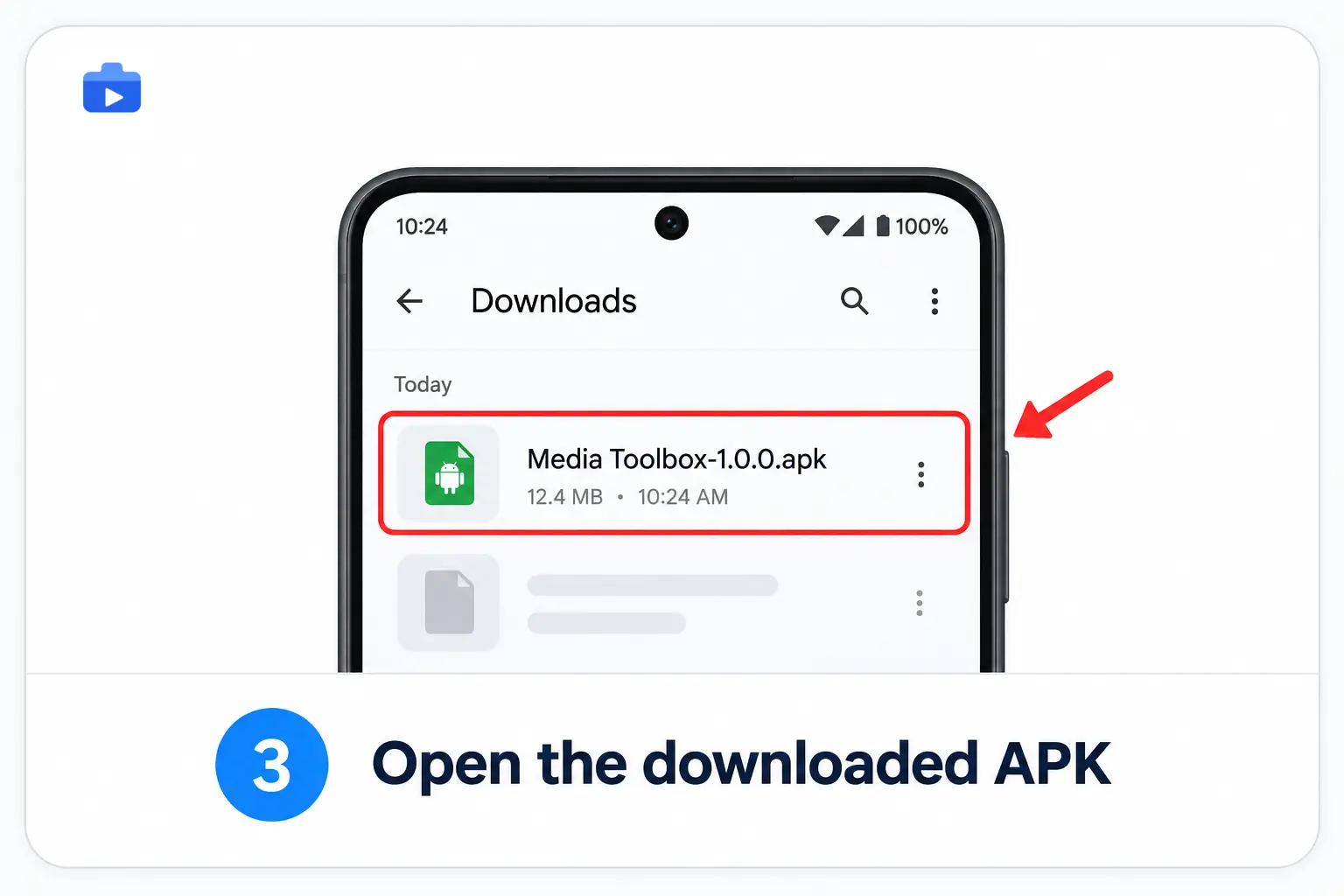
Follow the operating system prompt carefully and continue only when the file matches the release you selected.
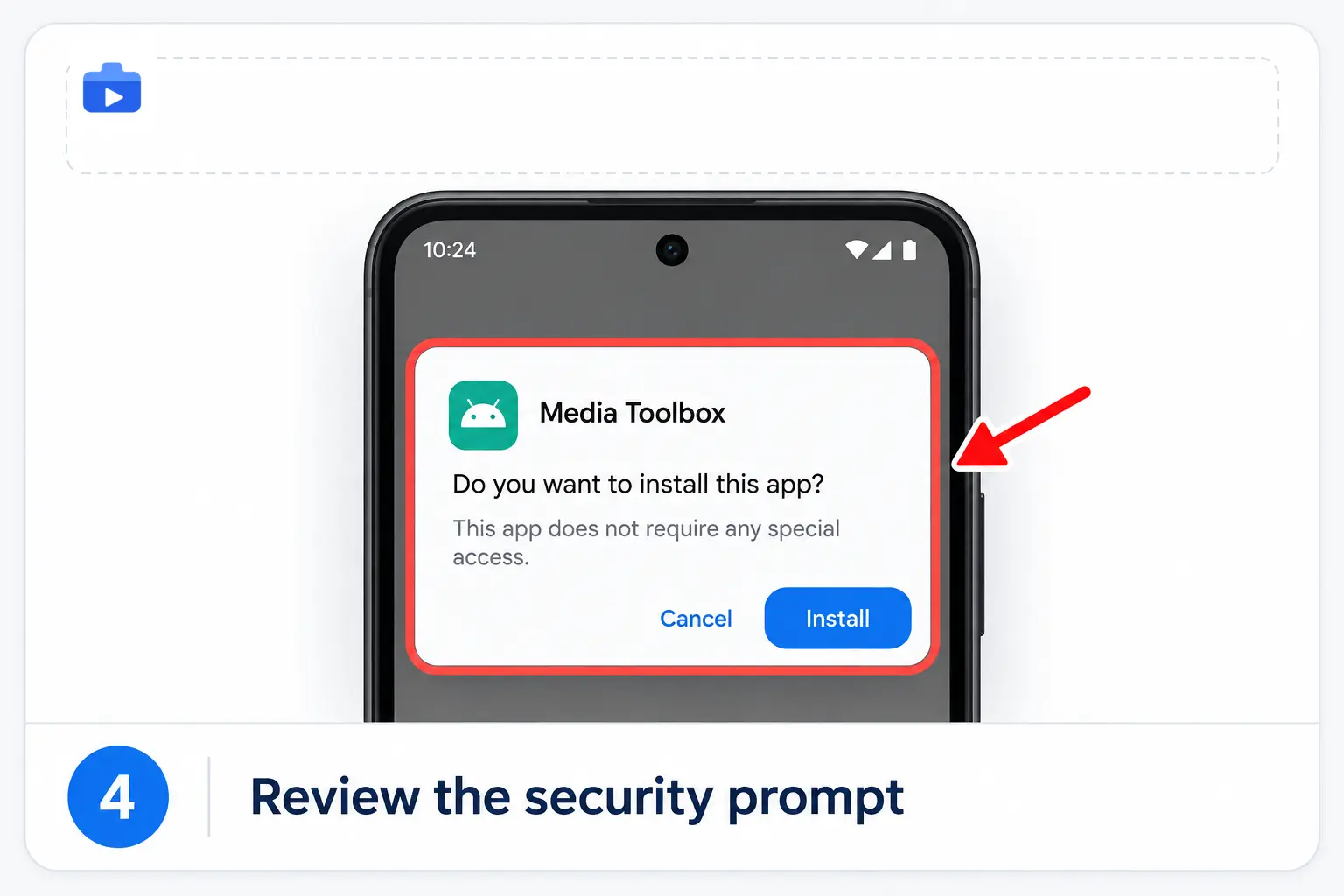
Follow the operating system prompt carefully and continue only when the file matches the release you selected.
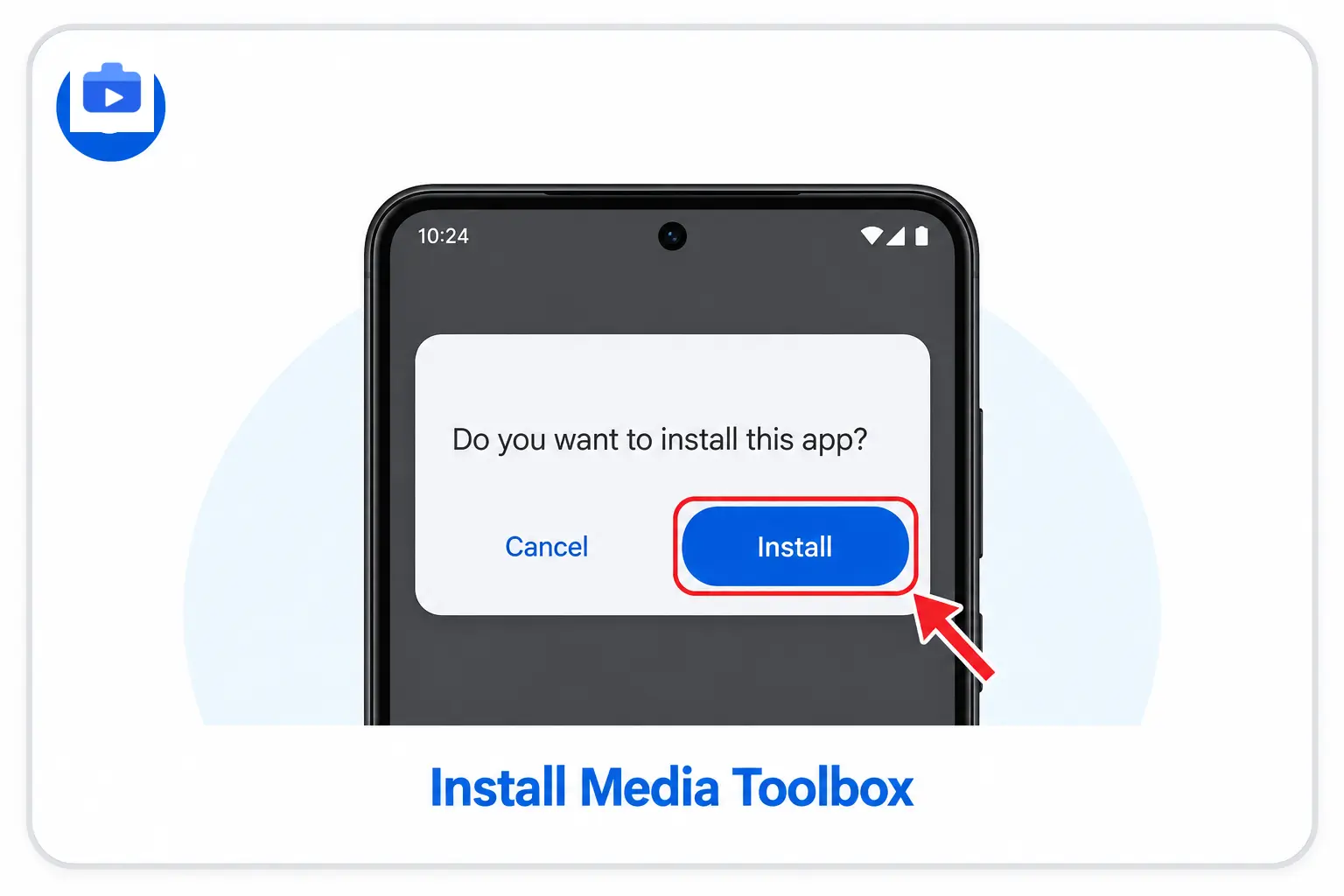
Follow the operating system prompt carefully and continue only when the file matches the release you selected.
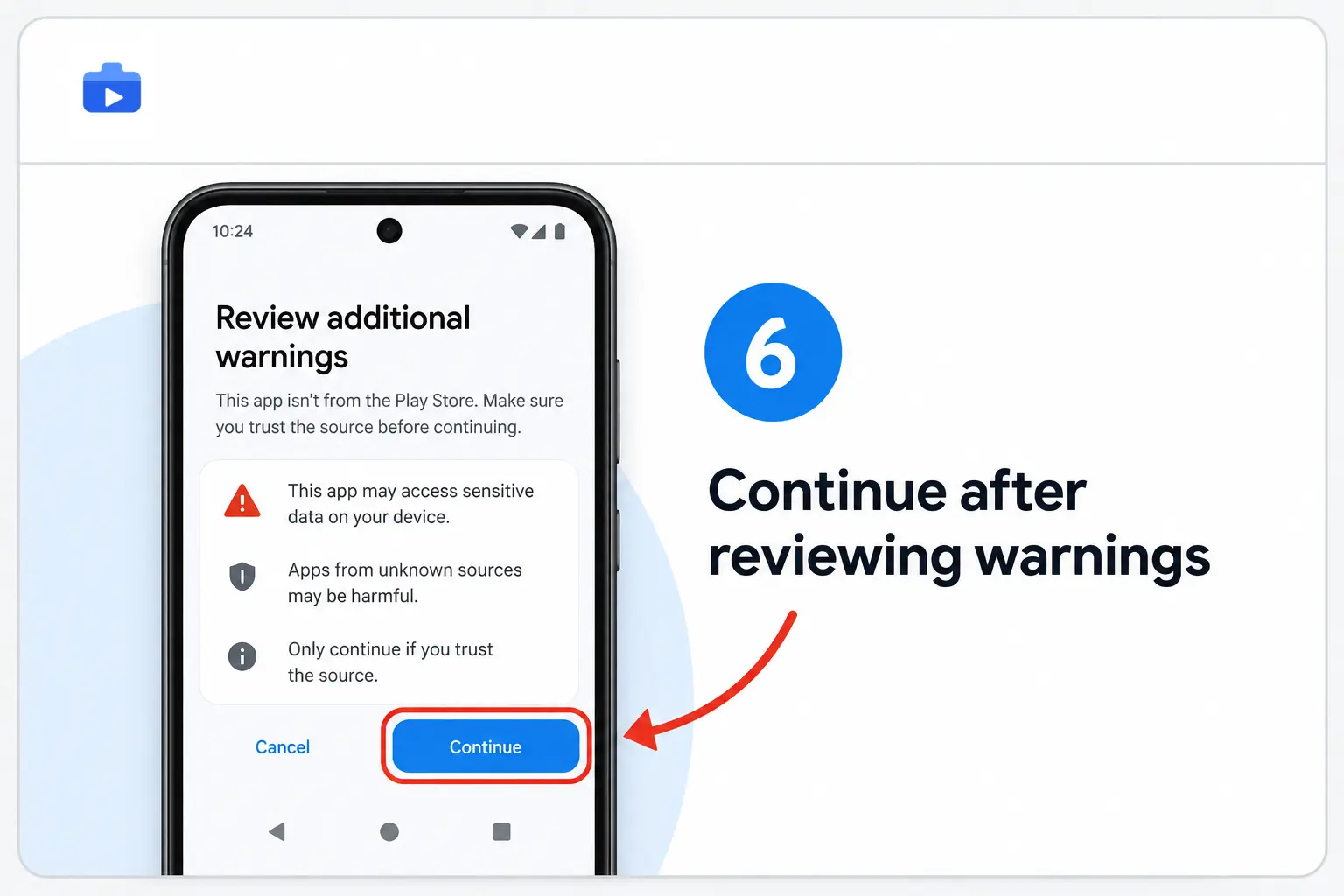
Follow the operating system prompt carefully and continue only when the file matches the release you selected.
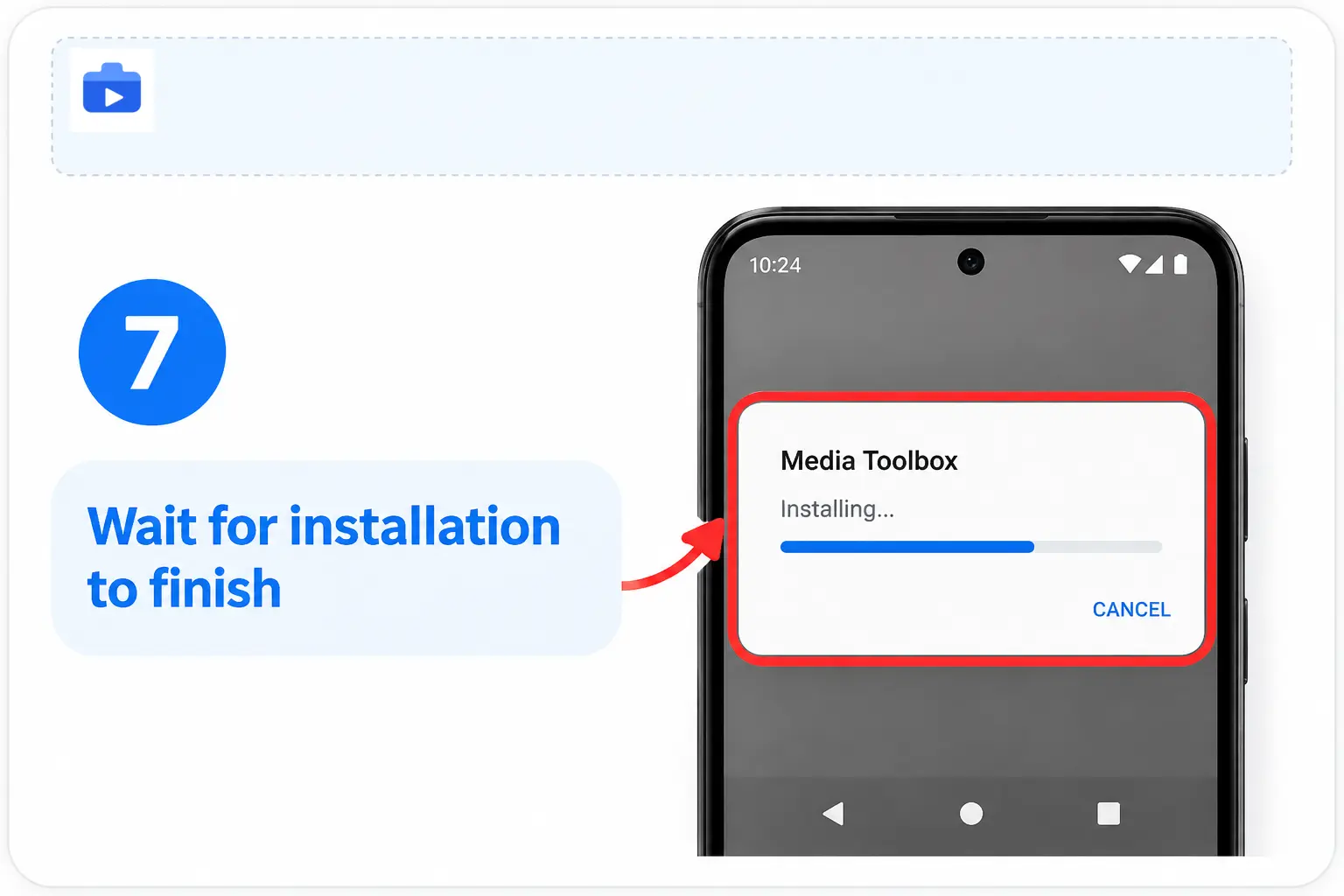
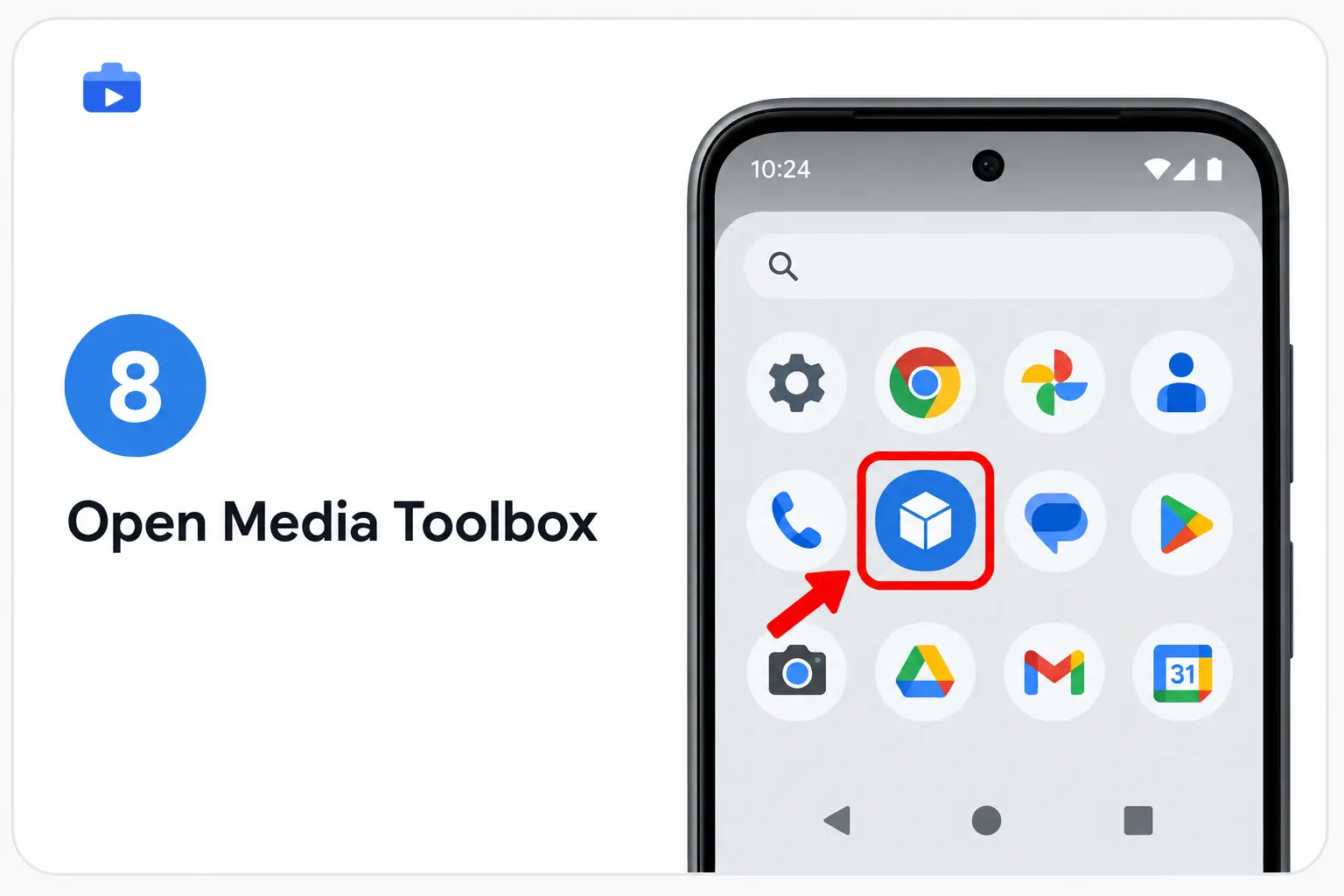
Launch Media Toolbox from the completion screen or your application list.
FAQ
Compare the release version, file size, source and checksum with the information shown above. Stop if the details do not match.
Android may show a source-specific prompt for an APK downloaded outside an app store. Continue only when the file and source match this release.
Paid checkout has not yet been enabled on mediatoolbox.net. Review the Payment Notice before responding to a third-party payment request.
Contact support with your device model, operating-system version, Media Toolbox version and the exact step or message where installation stopped.